Comparison: Microsoft 365 Programs vs. macOS, Linux, and Freeware Alternatives

```

When looking at the topic objectively, it is not about preferences, but about tools and how they work together. Microsoft 365 is not a single program, but an integrated system. That is exactly what fundamentally distinguishes it from macOS solutions, Linux environments, and traditional freeware approaches.

The Most Important Microsoft 365 Programs at a Glance

The package includes core applications for everyday work:

  • Word for word processing
  • Excel for spreadsheets and data analysis
  • PowerPoint for presentations
  • Outlook for email and calendar
  • Teams for communication and meetings
  • OneDrive and SharePoint for cloud and document management

These programs are not isolated—they work directly with each other. That is not a detail, but the core of the system.

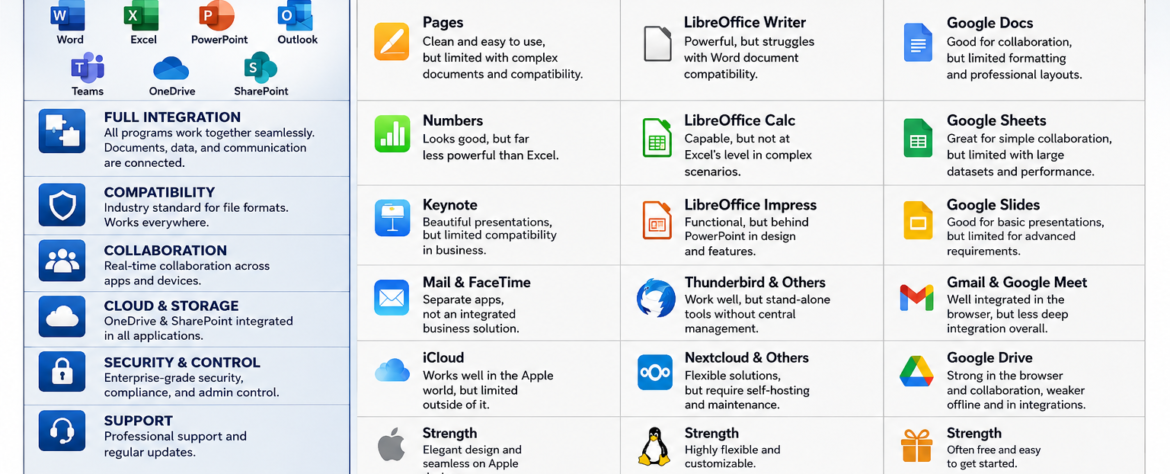
Word Processing: Word Compared

Microsoft Word is still the benchmark for professional documents. It offers the broadest feature set, especially for complex layouts, formatting, and templates.

Apple Pages looks clean and is easy to use, but quickly reaches limits when documents become more complex or need to be exchanged with external partners.

LibreOffice Writer is functionally strong, but regularly has problems displaying Word documents accurately. That quickly becomes a problem in daily work. Google Docs is good for browser-based collaboration, but limited in formatting and professional layouts.

The reality is simple: if you need clean, compatible documents, it is hard to avoid Word.

Spreadsheets: Excel as the Industry Standard

Excel is not just a spreadsheet program, but an analysis tool. Features such as macros, Power Query, and complex formulas make it the standard solution in business.

Apple Numbers is visually appealing, but significantly limited in functionality. It is unsuitable for serious data analysis.

LibreOffice Calc can do a lot, but not at Excel’s level, especially in complex scenarios. Google Sheets is practical for simple collaboration, but quickly reaches limits with large datasets and performance.

Here too, the rule applies: Excel is the standard—everything else is a compromise.

Presentations: PowerPoint vs. Alternatives

PowerPoint is globally established and fully integrated into the Microsoft ecosystem. Content can be transferred directly from Excel or Word without disruption.

Apple Keynote is visually strong, but loses relevance in everyday business due to limited compatibility. LibreOffice Impress is functionally sufficient, but not at the same visual or technical level. Google Slides is solid for simple presentations, but limited for more advanced requirements.

In professional environments, design is not the only factor—compatibility matters too, and PowerPoint dominates here.

Email and Communication

Outlook and Teams together form a complete communication system. Emails, calendars, meetings, and files are directly connected.

Apple offers Mail and FaceTime as separate solutions, but not an integrated enterprise system. Linux commonly uses tools such as Thunderbird. These work, but are isolated and not centrally manageable. Google combines Gmail and Meet well, but remains more browser-based and less deeply integrated.

Microsoft offers a closed structure here, while other solutions consist of separate components.

Cloud and Collaboration

OneDrive and SharePoint are fully integrated into all applications. Files are centrally available, versioned, and can be edited simultaneously—locally and online.

iCloud works well within the Apple world, but is barely useful outside it. Linux solutions such as Nextcloud are flexible, but must be self-hosted and maintained. Google Drive is strong in the browser and collaboration, but shows weaknesses offline and in more complex integrations.

Microsoft combines the best of both worlds: local applications and cloud services.

The Decisive Difference: Integration

The central point is not the individual application, but how they work together.

With Microsoft 365, all components interact. A Word document is automatically stored in OneDrive, can be shared in Teams, and referenced in Outlook. Excel data can be used directly in PowerPoint without detours.

With alternatives, it looks different:

  • Apple offers a good ecosystem, but only within its own hardware world
  • Linux is flexible, but fragmented and highly dependent on configuration
  • Freeware consists of individual tools without consistent structure

The result is clear: Microsoft is a system, the others are building blocks.

Strengths of Freeware – and Its Limits

Free solutions have their place.

  • LibreOffice is capable and covers many functions
  • Google Docs is strong for collaboration
  • Tools such as WPS or Zoho are usable alternatives

But there are clear limits:

  • No consistent integration
  • Problems with format compatibility
  • No professional support
  • Limited control in enterprise environments

For private use, this is often sufficient. In professional environments, it quickly becomes problematic.

Assessment by Use Case

For private users, freeware solutions are often enough.

For small and medium-sized businesses, Microsoft 365 offers clear advantages in structure and security.

In the enterprise sector, Microsoft is effectively the standard.

Conclusion

If the comparison is made honestly, the picture is clear:

  • Freeware is inexpensive, but fragmented
  • macOS is elegant, but limited
  • Linux is flexible, but demanding

Microsoft 365 is the only system that combines everything:

  • Integration
  • Compatibility
  • Collaboration
  • Structure

Price is not the problem. What matters is what you get for it. And overall, Microsoft 365 is not more expensive—it is more complete.

```

Synchronization Reality Check: Apple Is Simpler – Microsoft Is More Flexible and Universal

```

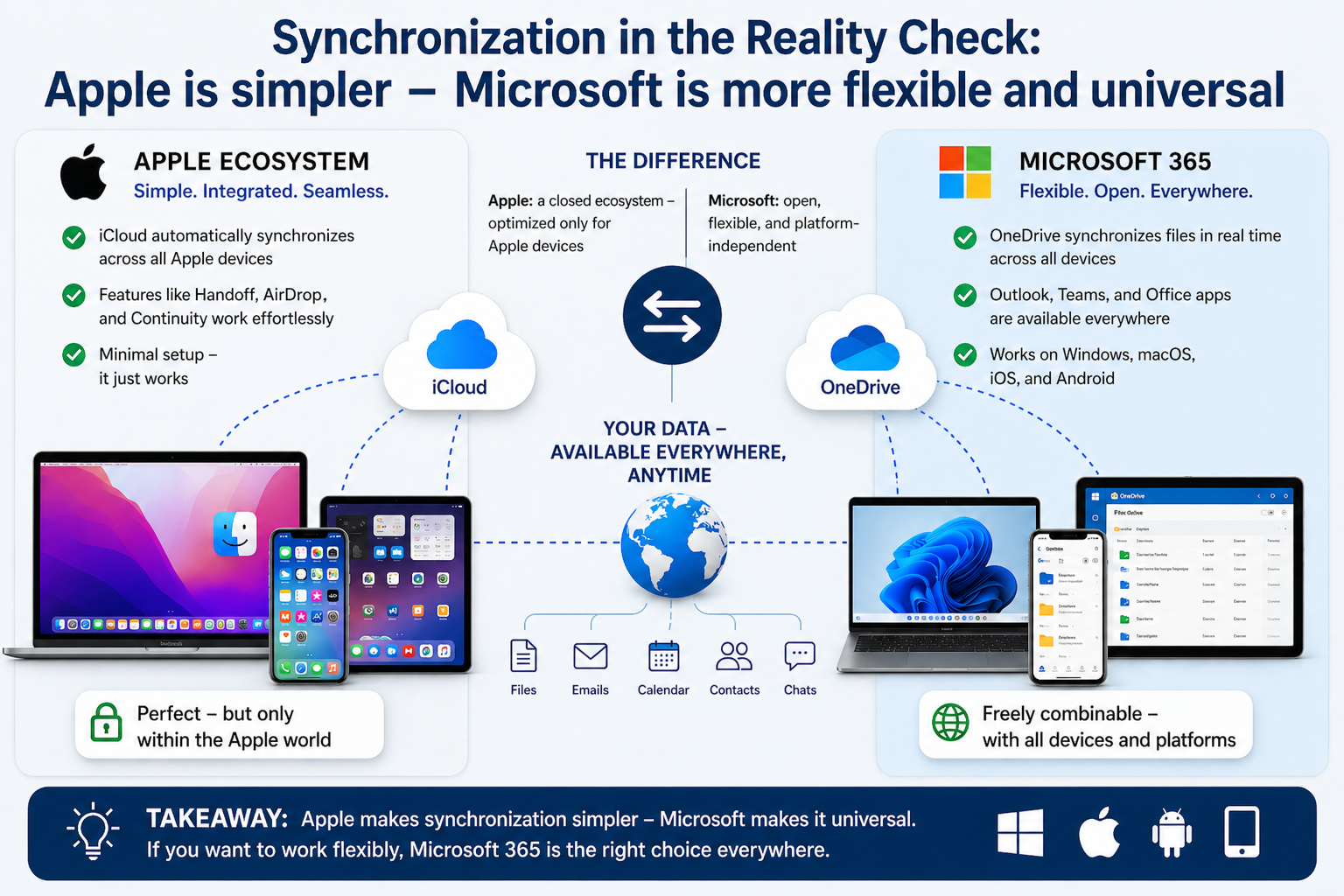
The claim made by many Mac users does not hold up that well. Apple has solved synchronization very well and very simply—but only within its own ecosystem. Microsoft can do the same, just with a different approach and in a much more open way.

How Apple Does It (macOS / iOS)

Apple relies on iCloud and close integration between devices:

  • Photos, contacts, calendars, and files sync automatically
  • Features like Handoff or AirDrop work almost “magically”
  • Setup is minimal; everything is preconfigured

This is technically elegant—but it works optimally only if you use Apple devices exclusively. As soon as Windows, Android, or other systems enter the picture, it quickly becomes limited.

How Microsoft Does It (Microsoft 365 / Windows / Mobile)

Microsoft follows a different approach: cloud-centered and cross-platform.

  • OneDrive synchronizes files in real time between Windows, macOS, iOS, and Android
  • Outlook synchronizes email, calendars, and contacts across all devices
  • Teams synchronizes chats, meetings, and files
  • Office documents are identically available everywhere—desktop, web, and mobile

The key point: Microsoft is not tied to specific hardware.

You can easily combine:

  • Windows PC in the office
  • MacBook while traveling
  • Android phone or iPhone privately

And still have the same data everywhere.

The Real Difference

Apple:

  • Extremely simple
  • Perfectly integrated
  • But closed

Microsoft:

  • Also fully synchronized
  • Requires a bit more configuration logic
  • But open and flexible

Where the Myth Comes From

Many people compare a fully optimized Apple setup with a poorly configured Windows system. That is not a fair comparison.

A properly configured Microsoft 365 system offers:

  • Automatic file synchronization (OneDrive)
  • Cross-device clipboard (Windows + Cloud Clipboard)
  • Password sync (Microsoft Authenticator / Edge)
  • Seamless document editing across all devices

The problem is usually not the technology—but the lack of proper setup.

Where Apple Truly Has the Advantage

  • Zero-configuration experience (unbox it and it works)
  • Deeply integrated device functions (for example AirDrop)
  • Consistent user interface

That is convenient, no question.

Where Microsoft Is Clearly Stronger

  • Cross-platform without restriction
  • Better integration in business environments
  • More flexible use of different devices
  • No dependency on a single manufacturer

Conclusion

  • Apple makes synchronization simpler.
  • Microsoft makes it more universal.

If someone uses only Apple products, the system may seem “better.”

But once you work realistically—with mixed devices, different requirements, and business integration—Microsoft is clearly superior.

The statement “Microsoft can’t do that” is simply false.

It works—just with fewer restrictions, and therefore with a bit more complexity.

```

Why you hear more about security issues in Microsoft Windows – and what is really behind it

```

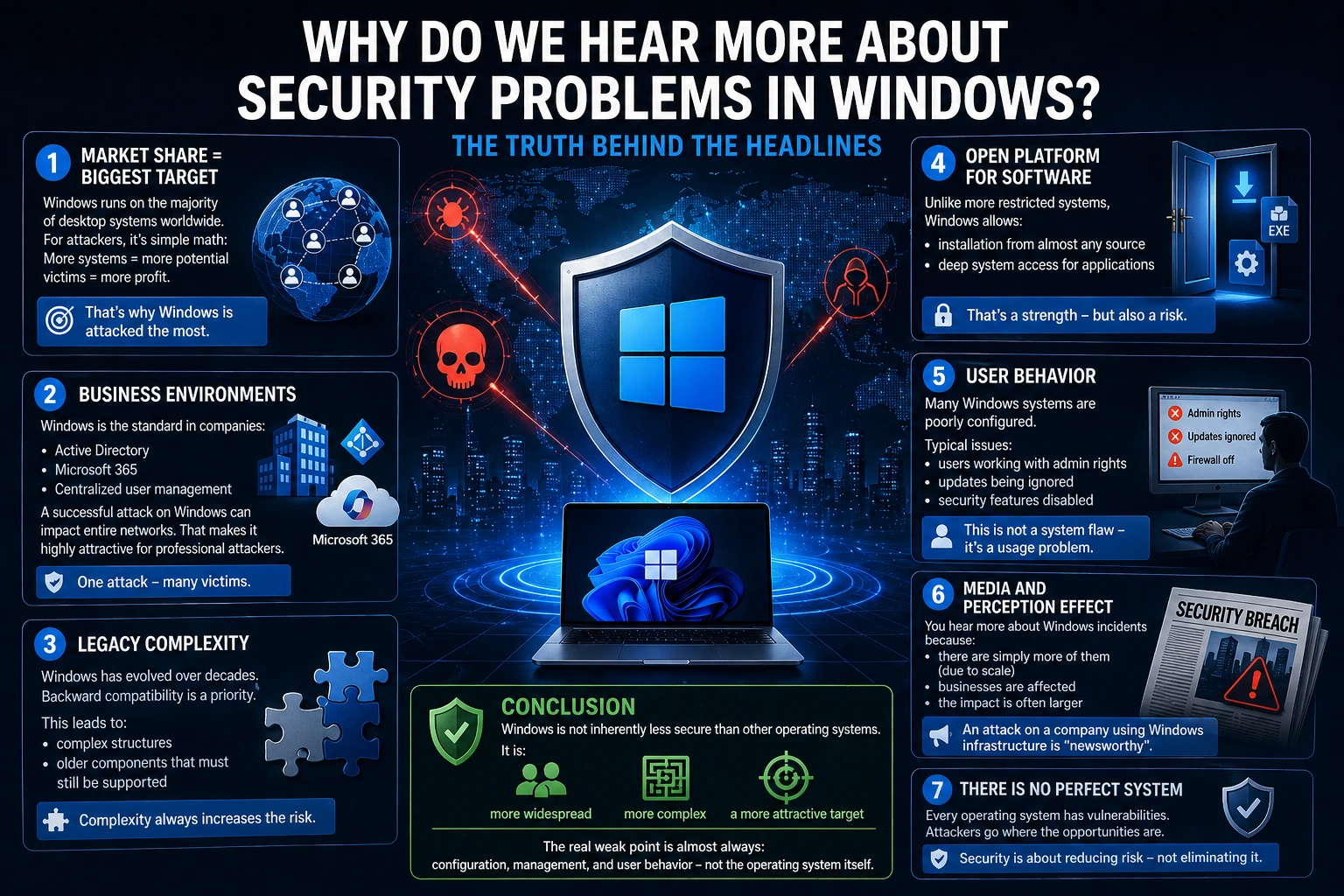
Simply put: You hear more about security problems in Windows because it is the biggest target — not because it is inherently less secure.

Here are the real reasons:

1. Market share = biggest target

Windows runs on the majority of desktop systems worldwide.

For attackers, it is simple math:

More systems = more potential victims = more profit.

That is why Windows is targeted the most.

2. Business environments

Windows is the standard in companies:

  • Active Directory
  • Microsoft 365
  • centralized user management

This means:

A successful attack on Windows can impact entire networks.

That makes it highly attractive for professional attackers.

3. Legacy complexity

Windows has evolved over decades.

Backward compatibility is a priority.

This leads to:

  • complex structures
  • older components that must still be supported

Complexity always increases the attack surface.

4. Open platform for software

Unlike more restricted systems (e.g. tightly controlled ecosystems),

Windows allows:

  • installation from almost any source
  • deep system access for applications

That is a strength — but also a risk.

5. User behavior

A critical factor:

Many Windows systems are poorly configured.

Typical issues:

  • users working with admin rights
  • updates being ignored
  • security features disabled

This is not a system flaw — it is a usage problem.

6. Media and perception effects

You hear more about Windows incidents because:

  • there are simply more of them (due to scale)
  • businesses are affected
  • the impact is often larger

An attack on a company using Windows infrastructure is far more visible than an issue on a single private device.

Conclusion

Windows is not inherently less secure than other operating systems.

It is:

  • more widespread
  • more complex
  • a more attractive target

The real weak point is almost always:

configuration, management, and user behavior — not the operating system itself.

```

Microsoft 365 vs. Alternatives – Viewed from an IT Management Perspective

```

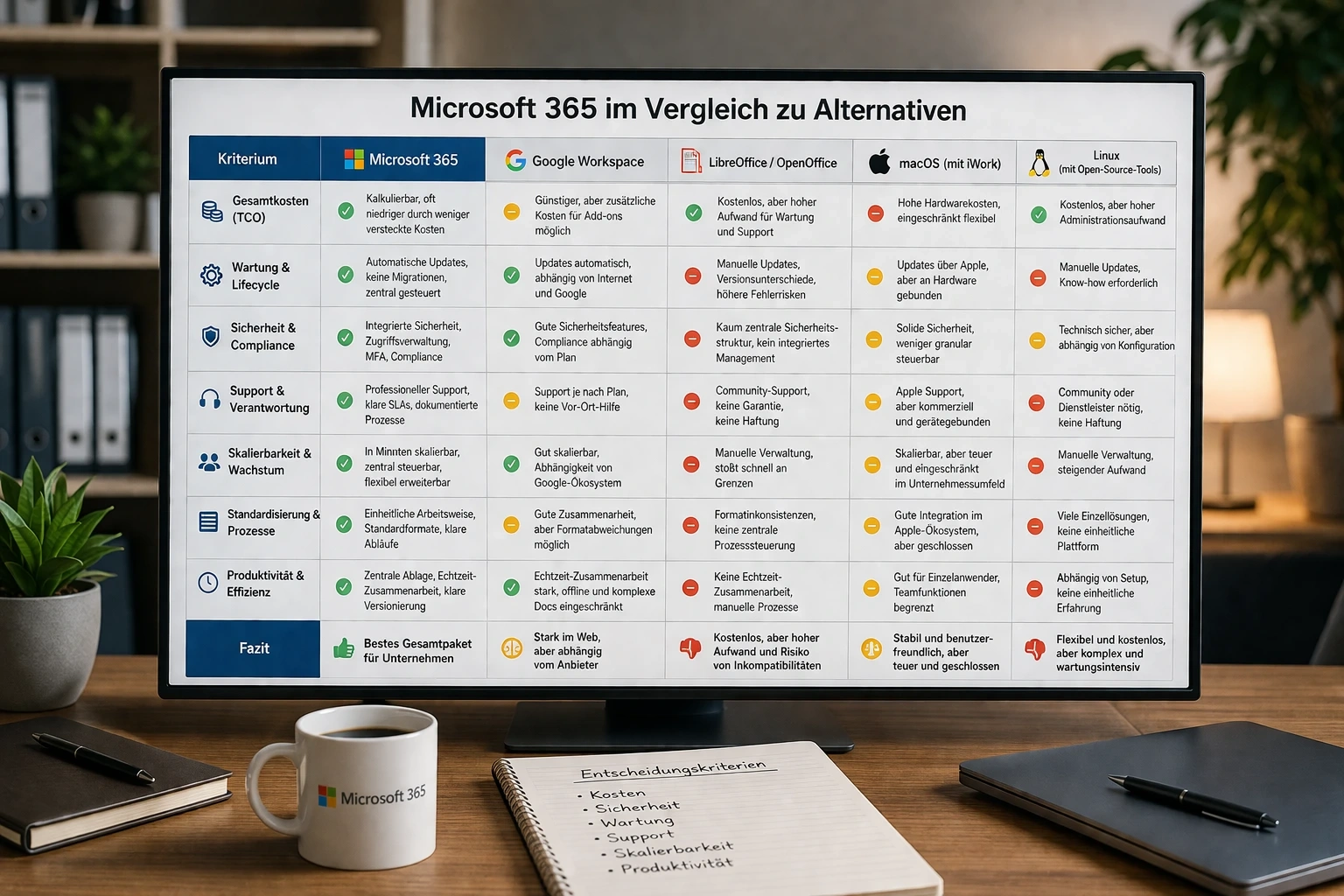
When making the decision at management level, it is no longer about detailed features, but about cost structure, risk, maintenance effort, and operational reliability. This is exactly where Microsoft 365 clearly separates itself from macOS solutions, Linux setups, and freeware.

1. Total Cost of Ownership (TCO)

The most common mistake is to look only at licensing costs. Microsoft 365 may appear more expensive at first glance because it involves an ongoing fee. In reality, total costs are often lower.

Why?

Because many hidden costs arise with alternatives:

  • Time lost due to incompatible documents
  • Additional effort for manual coordination
  • Extra tools for email, cloud storage, meetings
  • Internal or external IT support for setup and maintenance

Microsoft 365 combines everything into one system. Fewer interfaces mean fewer points of failure—and therefore lower costs.

With Linux or freeware, the software itself may be free, but operating costs rise: setup, maintenance, training, and support all cost time or money. This is regularly underestimated.

2. Maintenance and Lifecycle Management

Microsoft 365 removes a large part of traditional IT workload:

  • Automatic updates
  • No major version jumps or migrations
  • Centrally manageable systems
  • Consistent versions for all users

With traditional installations or freeware, it looks different:

  • Updates must be planned and tested
  • Different versions across the company
  • Manual intervention required
  • Higher risk of incompatibilities

Linux is stable, but maintenance remains manual work. macOS is simpler, but strongly tied to Apple and less flexible in a business environment.

3. Security and Risk Management

This is where it becomes business-critical.

Microsoft 365 offers:

  • Integrated security mechanisms
  • Central user and access management
  • Multi-factor authentication
  • Threat detection and automated responses

The key point: security is part of the system, not an optional add-on.

Alternatives:

  • Freeware: little or no central security structure
  • Linux: technically secure, but dependent on configuration and expertise
  • Apple: solid, but less granular control in enterprise environments

The real risk lies not in the software itself, but in misconfiguration and lack of control. Microsoft reduces exactly this risk.

4. Support and Responsibility

A point often ignored: Who is responsible when something stops working?

With Microsoft 365 you have:

  • Clearly defined support structures
  • Documented processes
  • Reliable updates and fixes

With freeware:

  • Community support
  • No guaranteed response times
  • No liability

Linux environments can be run professionally—but only with sufficient expertise or an external service provider.

In short:

Microsoft = clear point of contact

Freeware = self-responsibility

5. Scalability and Growth

A business does not remain static. Systems must grow with it.

Microsoft 365 is designed for this:

  • New users integrated within minutes
  • Permissions centrally managed
  • Services flexibly expandable

Alternatives quickly hit limits:

  • Manual user management
  • Different tools without central control
  • Increasing administrative effort

This leads to a classic problem: as growth increases, complexity rises disproportionately.

6. Standardization and Processes

Crucial in practice.

Microsoft 365 provides:

  • Consistent ways of working
  • Standardized documents
  • Clear workflows

Alternatives often lead to:

  • Different tools in use
  • Individual workflows
  • Lack of structure

The result: inefficient processes and workflows that are hard to control.

7. Productivity as an Economic Factor

The biggest cost factor is not software—but working time.

If employees must:

  • Search for documents
  • Compare versions
  • Solve avoidable problems

…then it directly costs money.

Microsoft 365 reduces exactly these friction losses:

  • Central storage
  • Real-time collaboration
  • Clear version control

That is not convenience—it is efficiency.

Conclusion

The decisive question is not:

“Which software is free?”

But:

“Which solution causes the lowest total cost while delivering maximum stability?”

And here the situation is clear:

  • Freeware saves license costs but increases operational effort
  • Linux offers flexibility but requires expertise
  • macOS is stable but limited in business contexts

Microsoft 365 delivers the best overall package of:

  • Predictable costs
  • Low maintenance effort
  • High security
  • Clear structure

This is not a matter of preference but of economic efficiency and risk minimisation.

```

Skype is saying Goodbye in May 2025

```

Goodbye Skype

In May 2025 Skype will officially retire. This change affects both free and paid Skype users, though Skype for Business isn’t impacted.


If you’re a Skype user, you’ve got a smooth transition option: Microsoft Teams Free.

It brings over many of Skype’s core features – plus some extras.

Lorem Ipsum has been the industry’s standard dummy text ever since the 1500s.

Just sign into Teams Free with your Skype account, and your chats and contacts will pop up, letting you jump right back in. This switch will roll out step-by-step over the next few days for users on the latest versions of Skype and Teams. Not convinced by Teams Free? No worries – you can export your Skype data instead.


Here’s the deal for paid Skype features:

  1. If you’ve got an active recurring subscription (like calling or a Skype Number) that ends before April 3, 2025, it’ll renew one last time.
  2. If your subscription runs past April 3, 2025, you can keep using it – and your Skype Number – until it expires. Want to hold onto that number afterward? You’ll need to transfer it to a new provider. Contact them directly to get the ball rolling.

    One more thing: new customers won’t be able to buy paid Skype features moving forward. For existing paid users, the Skype Dial Pad will still be available starting in May via the Skype web portal or within Teams Free.

    Switching to Teams Free? It’s easy!


    Moving from Skype to Microsoft Teams Free is simple—here’s how it works:

    1.  Just sign into Teams Free with your current Skype account. No need to start from scratch – your chats and contacts will automatically show up. 
    2. Once you log in with your Skype credentials, your chats and contacts transfer over to Teams Free without any extra steps. 
    3. The sync happens fast – think less than a minute – and you’re good to go!

     A Few Things to Know:

    1.  Chats between Skype users and Teams work or school accounts won’t carry over. No biggie – ust start a fresh conversation in Teams Free with those work or school folks and unlock even more features.
    2. Skype-to-Skype for Business chat history won’t make the trip.
    3. One-on-one chats with yourself (yep, those self-notes) won’t transfer.
    4. Private conversation data stays behind too.
    5. Copilot and bot content? Not supported in Teams Free, so no chat history there either.

    Will You Lose Skype Access After Switching?


    No! Signing into Teams Free doesn’t lock you out of Skype. From now until May 5, 2025, you can still hop into Skype whenever you want, and your data will stay accessible. Use both apps as much as you need during this transition window.


    What Happens to Your Data?


    Your Skype data isn’t going anywhere just yet – you’ve got until January 2026 to export or delete it. If you log into Teams Free before then, your call and chat history will be waiting for you. But if you don’t take any action, your Skype data will be wiped in January 2026.

    Alternatives for calls to landlines and mobile

    Google Voice:

    1. Overview: A versatile VoIP service from Google that allows calls to landlines and mobiles.
    2. Landline Calling: Offers free calls to landlines in the US and Canada; international calls to landlines are available at low per-minute rates (e.g., as low as 1¢/minute to some countries).
    3. Features: Provides a personal phone number, voicemail, and texting. Works across devices via app or browser.
    4. Cost: Free for US/Canada landline calls; international calls require credit.
    5. Why It’s a Good Alternative: Simple to use with a Google account, no additional software needed beyond the app, and competitive international rates.
    Viber (Viber out)
    1. Overview: Primarily a messaging app, but its “Viber Out” feature supports calls to landlines.
    2. Landline Calling: Free calls between Viber users; calls to landlines worldwide require a Viber Out subscription or credits (e.g., rates start at around 1.9¢/minute to US landlines).
    3. Features: Includes messaging, video calls, and group chats. Available on mobile and desktop.
    4. Cost: Viber-to-Viber is free; landline calls require prepaid credits or a subscription (e.g., $5/month for 500 minutes to certain countries).
    5. Why It’s a Good Alternative: Affordable rates and a familiar interface for Skype users.

    ```